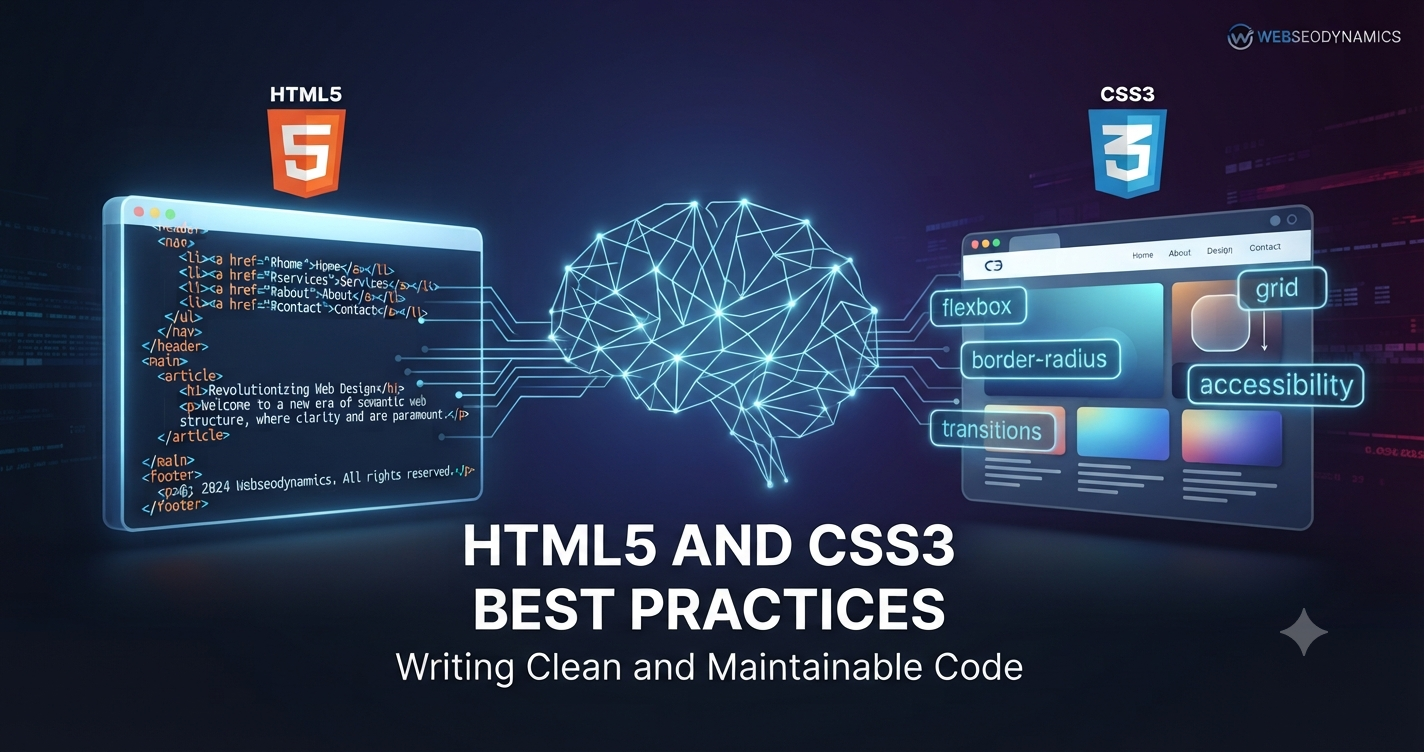
HTML5 and CSS3 Best Practices: A Complete Guide for Cleaner, Faster Websites
Every website, no matter how sophisticated its backend or how clever its JavaScript, is ultimately built on two foundational technologies: HTML5 for structure and CSS3 for presentation. Get these two right, and everything downstream — accessibility, performance, SEO, maintainability — becomes easier. Get them wrong, and you end up compensating for bad structure with hacky scripts and bloated stylesheets for years to come.
The frustrating part is that HTML and CSS are deceptively simple to start with and genuinely difficult to master. Almost anyone can write a `<div>` and a `background-color`, but writing HTML that's semantic, accessible, and search-engine friendly — and CSS that scales across a growing codebase without turning into spaghetti — takes discipline and a set of practices developed the hard way, usually by inheriting someone else's messy project.
This guide walks through the best practices that separate professional, maintainable front-end code from code that merely "works." Whether you're a developer refining your craft or a business owner trying to evaluate the quality of a website being built for you, these principles apply.
1. Why Semantic HTML5 Still Matters
Before HTML5, developers leaned heavily on generic `<div>` elements for everything — headers, footers, navigation, articles, sidebars — distinguishing them only through class names like `class="header"` or `class="nav"`. HTML5 introduced a set of semantic elements specifically to fix this: `<header>`, `<nav>`, `<main>`, `<article>`, `<section>`, `<aside>`, and `<footer>`.
Semantic markup isn't just cosmetic tidiness. It communicates the actual meaning and structure of your content to browsers, search engines, and assistive technologies like screen readers. A `<nav>` element tells a screen reader "this is navigation, the user might want to skip it." A `<div>` with a class of `nav` tells it nothing at all.
<body>
  <header>
    <h1>Site Title</h1>
    <nav>...</nav>
  </header>

  <main>
    <article>
      <h2>Article Title</h2>
      <p>Article content...</p>
    </article>

    <aside>Related links or ads</aside>
  </main>

  <footer>© Site Name</footer>
</body>
A useful mental test: if you can replace a `<div>` with a more descriptive semantic tag without breaking anything, you probably should. Reserve `<div>` and `<span>` for cases where no semantic element fits — purely presentational wrappers with no inherent meaning of their own.
2. HTML5 Structural Best Practices
Use One `<h1>` Per Page, and Nest Headings Logically
Heading tags (`<h1>` through `<h6>`) should form a logical outline of your page, similar to a table of contents. Skipping levels — jumping from an `<h2>` straight to an `<h4>` because it "looked right" visually — breaks that outline for screen readers and confuses search engine crawlers trying to understand your content hierarchy. Use CSS to control how a heading looks; use the heading level to control what it means structurally.
Always Declare a Doctype and Language
Every HTML5 document should begin with `<!DOCTYPE html>` and declare a language attribute on the `<html>` tag, such as `<html lang="en">`. This seems trivial, but it affects how screen readers pronounce content, how browsers apply default styling, and how translation tools behave.
Validate Your Markup
Unclosed tags, improperly nested elements, and duplicate IDs are common sources of unpredictable rendering across browsers. Running your HTML through the W3C Markup Validator periodically catches these issues before they compound into harder-to-debug problems.
Use Meaningful `alt` Text on Every Image
Every `<img>` tag needs an `alt` attribute. For content-bearing images, describe what the image conveys ("Bar chart showing revenue growth from 2023 to 2026"). For purely decorative images, use an empty `alt=""` so screen readers skip over them entirely rather than reading a meaningless filename aloud.
3. Accessibility Best Practices
Accessibility (often shortened to a11y) isn't a checkbox to tick at the end of a project — it's a natural byproduct of writing good semantic HTML from the start. A few practices make an outsized difference:
- Label every form field: Use `<label for="fieldId">` paired with a matching `id` on the input, so screen reader users know what each field expects.
- Ensure sufficient color contrast: Text should meet WCAG AA contrast ratios (4.5:1 for normal text) against its background — light gray text on a white background is a common offender.
- Make interactive elements keyboard-navigable: Anything a mouse user can click should also be reachable and operable via the Tab key and Enter/Space, without relying purely on `<div onclick>` patterns that bypass native keyboard support.
- Use ARIA attributes sparingly and correctly: ARIA roles can patch gaps where native HTML falls short, but the first rule of ARIA is: don't use ARIA if a native HTML element already does the job. A native `<button>` is more robust than a `<div role="button">`.
- Provide visible focus states: Never remove the default focus outline with `outline: none` unless you replace it with an equally visible custom focus style — keyboard users rely on it to know where they are on the page.
4. HTML5 Performance Best Practices
Markup choices have a direct, measurable effect on page speed and Core Web Vitals scores. A few habits worth building:
- Use native lazy loading: Adding `loading="lazy"` to below-the-fold `<img>` and `<iframe>` tags defers loading until the element is near the viewport, reducing initial page weight without any JavaScript.
- Specify image dimensions: Always set `width` and `height` attributes (or use CSS `aspect-ratio`) on images so the browser can reserve space before the image loads, preventing layout shift — a key factor in Cumulative Layout Shift (CLS) scores.
- Serve modern image formats: Use the `<picture>` element with WebP or AVIF sources and a fallback, so browsers that support smaller formats download less data.
- Minimize DOM depth: Deeply nested `<div>` structures ("div soup") slow down style recalculation and layout. Flatten your markup wherever a wrapper element isn't adding structural or styling value.
- Defer non-critical scripts: Use `defer` or `async` on `<script>` tags so JavaScript doesn't block HTML parsing and initial render.
5. CSS3 Architecture and Organization
HTML best practices keep a single page clean. CSS best practices keep an entire project sane as it grows to dozens or hundreds of components. The single biggest failure mode in CSS is specificity creep — styles that keep getting overridden, so developers reach for `!important`, which then requires even more `!important` to override later. Breaking that cycle starts with a consistent methodology.
Adopt a Naming Convention
Methodologies like BEM (Block, Element, Modifier) give every class a predictable, self-documenting name: `.card`, `.card__title`, `.card--featured`. This avoids ambiguous, deeply nested selectors like `.sidebar .widget ul li a:hover`, which are fragile and hard to reuse.
/* BEM naming */
.card { }
.card__title { }
.card__image { }
.card--featured { }

/* Instead of this fragile nested chain */
.sidebar .widget ul li a:hover { }
Keep Specificity Low and Flat
Prefer single class selectors over ID selectors or long descendant chains. IDs carry high specificity that's difficult to override later, and descendant chains tie your styling to a specific HTML structure that becomes brittle the moment that structure changes.
Organize Stylesheets by Component, Not by Page
Rather than one giant `styles.css` organized loosely by page ("home page styles," "contact page styles"), split styles into component-based partials (`buttons.css`, `cards.css`, `forms.css`) and import them into a single build. This mirrors how modern component-based frontend frameworks think, and makes it far easier to find and update a specific style without side effects elsewhere.
6. Modern Layout: Flexbox and Grid
Old-school layout techniques — floats, table-based layouts, absolute positioning for basic structure — are largely obsolete. CSS3 gave us two layout modules that should now be the default choice for almost everything:
Flexbox
Best for one-dimensional layouts — a row of navigation links, a horizontally or vertically aligned set of cards, centering content within a container, or distributing space between items in a toolbar.
CSS Grid
Best for two-dimensional layouts — full page structures, image galleries, dashboards, or any layout that needs to control rows and columns simultaneously rather than just one axis.
A practical rule many teams follow: reach for Flexbox first for component-level alignment, and reach for Grid when structuring the overall page layout or a genuinely two-dimensional arrangement. They're not competitors — most real layouts use both together, Grid for the outer skeleton and Flexbox inside individual grid cells.
.page-layout {
  display: grid;
  grid-template-columns: 240px 1fr;
  gap: 24px;
}

.card-row {
  display: flex;
  align-items: center;
  justify-content: space-between;
  gap: 12px;
}
7. Responsive Design Best Practices
With mobile traffic dominating most websites' analytics, responsive design isn't optional — it's the baseline expectation. A few practices consistently separate solid responsive implementations from brittle ones:
- Design mobile-first: Write your base CSS for small screens, then use `min-width` media queries to add complexity for larger viewports. This tends to produce leaner CSS than starting from desktop and fighting to simplify downward.
- Use relative units: Favor `rem` for typography and spacing, and percentages or `fr` units for layout widths, rather than hardcoded pixel values that don't scale with user font-size preferences or different screen densities.
- Set the viewport meta tag: `<meta name="viewport" content="width=device-width, initial-scale=1.0">` is non-negotiable — without it, mobile browsers render pages at a desktop width and scale them down, defeating your responsive CSS entirely.
- Test real breakpoints, not just device presets: Rather than only checking "iPhone" or "iPad" presets in dev tools, drag the browser window across the full width range to catch awkward in-between states your layout doesn't handle gracefully.
- Use `clamp()` for fluid typography: `font-size: clamp(1rem, 2vw + 0.5rem, 1.5rem)` lets text scale smoothly between a minimum and maximum size across viewport widths, often replacing several manual media query breakpoints.
8. CSS Custom Properties and Maintainability
CSS custom properties (commonly called CSS variables) let you define reusable values — colors, spacing units, font sizes — once, and reference them everywhere. This is one of the highest-leverage habits a team can adopt, because it turns "find and replace every instance of this blue" into "change one variable."
:root {
  --color-primary: #1f6fd6;
  --color-success: #28a745;
  --spacing-md: 16px;
  --radius-base: 8px;
}

.button {
  background: var(--color-primary);
  padding: var(--spacing-md);
  border-radius: var(--radius-base);
}
Custom properties also respond to context in ways preprocessor variables (like Sass variables) can't — they can be overridden inside a specific component, media query, or theme (such as a dark mode toggle) at runtime, without recompiling anything.
9. Common Mistakes to Avoid
Even experienced developers fall into a handful of recurring traps:
- Overusing `!important`: It's a specificity escape hatch that, used often, makes future overrides progressively harder and signals an underlying architecture problem rather than solving one.
- Inline styles for anything beyond one-off, dynamic values: Inline `style` attributes bypass your stylesheet's cascade entirely and are difficult to override or maintain consistently across a site.
- Div soup: Wrapping every element in three extra `<div>`s "just in case" bloats the DOM and usually signals a missing semantic element or a layout that could be simplified with Flexbox or Grid.
- Ignoring browser support until launch: Checking caniuse.com for a CSS feature before building around it is far cheaper than discovering a layout breaks in a widely used browser after the site is live.
- Non-descriptive class names: Names like `.box1`, `.red-text`, or `.left-thing` describe how something currently looks, not what it is — they break down the moment the design changes.
- Skipping the `<head>` basics: Missing meta descriptions, missing favicon, missing Open Graph tags — small omissions that quietly hurt SEO and social sharing.
Frequently Asked Questions
Is it still worth learning plain HTML5 and CSS3 if I use a framework like React?
Yes. Frameworks still compile down to HTML and CSS in the browser, and understanding semantics, accessibility, and layout fundamentals makes you better at using any framework — and much faster at debugging when something renders unexpectedly.
Should I use Sass/LESS or plain CSS3 with custom properties?
Modern CSS3 has closed much of the gap — nesting, custom properties, and functions like `clamp()` and `min()`/`max()` cover a lot of what preprocessors were once needed for. Preprocessors still add value for large codebases (mixins, loops), but many smaller projects no longer need the extra build step.
How do I know if my HTML is accessible enough?
Run an automated checker (like Lighthouse or axe DevTools) as a baseline, but also manually navigate your site using only a keyboard, and test with a screen reader like NVDA or VoiceOver. Automated tools catch roughly a third of real accessibility issues — manual testing catches the rest.
Does semantic HTML actually improve SEO rankings?
Semantic HTML helps search engines understand your content's structure and hierarchy more reliably, which supports better indexing and can contribute to rich results. It's not a direct ranking factor on its own, but it removes friction that could otherwise hold a well-optimized page back.
Conclusion
HTML5 and CSS3 best practices aren't about chasing the newest syntax for its own sake — they're about writing markup and styles that stay maintainable, accessible, and fast as a project grows past its first few pages. Semantic structure, thoughtful accessibility, a consistent CSS architecture, and modern layout tools like Flexbox and Grid form the foundation that everything else — performance, SEO, user experience — is built on top of. Get the foundation right, and the rest of the site gets noticeably easier to build and maintain.
Want a Website Built on Solid Foundations?
At Webseodynamics, we build custom sites in clean, semantic HTML5 and CSS3 — not bloated page-builder templates — so your site is fast, accessible, and search-engine ready from day one.
Get a Free Consultation Today